
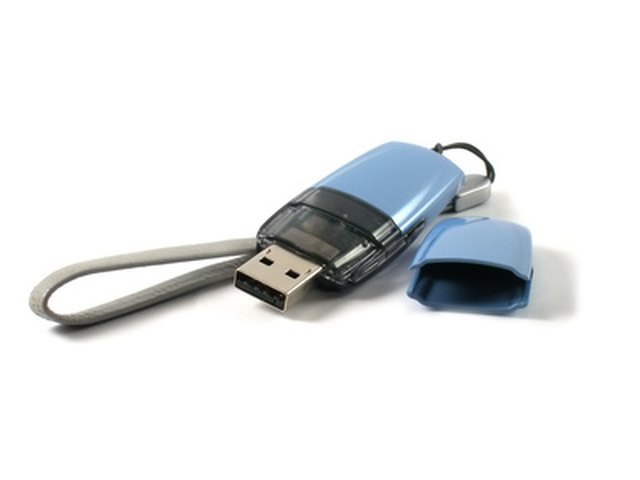
Running your Steam client from a portable storage device offers tremendous convenience, especially for gamers who like to access their library on multiple computers without the need for reinstallation. This process allows you to carry your game library, settings, and preferences wherever you go, making gaming on the go much easier. In this guide, you’ll learn how to set up Steam to run from a USB thumb drive, ensuring you can enjoy your favorite titles anywhere. Additionally, understanding how to develop and manage gaming ecosystems or explore costs involved in mobile game creation can enhance your overall gaming experience. For those interested in creating immersive 3D environments or expanding their mobile game portfolio, there are useful resources available to guide you.
How to Run Steam from a Thumb Drive
The process involves copying your Steam installation and game files onto a portable drive and running the application directly from there. This setup provides flexibility and saves space on your main computer, allowing you to play anywhere without disturbing your primary system.
Step 1
Begin by locating the Valve folder on your computer’s hard drive. Typically, this is found at “C:Program FilesSteam” or “C:Program Files (x86)Steam.” Before copying, ensure that all the games you plan to play are fully installed and functional within this directory. Confirm that your system has enough space on the USB drive to accommodate the entire Steam folder, including your installed games. For more insights on creating efficient and reliable software environments, check out this resource on building profitable app ecosystems.
Step 2
Insert your USB thumb drive into the computer, making sure it has sufficient free space for the entire Steam folder and associated game files. Copy the entire “Steam” folder from your hard drive to the thumb drive. This process may take some time depending on the size of your library. It’s advisable to eject the drive safely once copying is complete to prevent data corruption.
Step 3
Remove the thumb drive from your original PC and connect it to the computer where you wish to play your games. This second computer doesn’t require Steam to be installed locally, as you will be running it directly from the portable drive. Keep in mind that performance may vary depending on the drive’s speed and the hardware of the host computer.
Step 4
Navigate to the thumb drive’s directory and open the Steam folder. Double-click on “steam.exe” to launch the client. This method bypasses the need for a traditional installation and allows Steam to run from your portable device. If you encounter issues, ensure that the drive is recognized correctly and that your system meets the necessary requirements.
Step 5
Log into your Steam account using your credentials. Once logged in, locate the game you want to play and launch it. To ensure optimal gameplay, assess the connection quality and performance on the host computer, adjusting settings if necessary to match the hardware capabilities. For developers interested in expanding their game offerings, understanding the costs associated with mobile game creation can be helpful; see this guide on mobile game development expenses.
Step 6
Adjust your game settings as needed, such as resolution, graphics quality, and control options, to match the hardware specifications of the new computer. This step is critical to ensure smooth gameplay and avoid lag or performance issues. For a more immersive experience, exploring options like 3D mobile app development can be beneficial; learn more at this resource on 3D app creation.
Step 7
Start playing your game! Be aware that there may be a slight delay or lag initially while the game initializes. After a few moments, the performance should stabilize, allowing you to enjoy a seamless gaming experience. If necessary, tweak the settings further to optimize responsiveness and visuals.
By following these steps, you can easily run Steam from a USB thumb drive, giving you the freedom to enjoy your game library anywhere. For those interested in expanding their gaming projects or exploring new development techniques, consider researching how to develop engaging mobile gaming experiences or build advanced 3D environments, which are increasingly popular in the gaming industry.