


Encountering issues with games not starting on Steam can be incredibly frustrating, especially when you’re eager to jump into your favorite titles. Several factors can prevent a Steam game from launching properly, ranging from software conflicts to outdated drivers. Fortunately, there are systematic steps you can take to diagnose and resolve these problems. This guide provides detailed methods to get your games running smoothly again, ensuring a seamless gaming experience.
—
How to Fix Steam Games That Fail to Launch
When your Steam game refuses to start, it’s important to approach the problem methodically. Common causes include outdated system components, corrupted files, incompatible hardware specifications, or interference from other applications. By following these troubleshooting steps, you can identify and fix the root cause.
Start with simple solutions like updating your operating system and drivers, then move on to more advanced procedures such as verifying game files or resetting BIOS settings. Each step is designed to address specific issues that might be blocking your game from launching. Remember, some fixes might require administrative access or specific technical knowledge, so proceed carefully.
—
Step-by-Step Troubleshooting Methods
1. Update Your Operating System
Ensuring your operating system is current is essential for game compatibility. Sometimes, pending updates or recent changes can cause conflicts that prevent games from launching. To check for updates:
- Windows: Type “Windows Update” into the search bar and select the option that appears. Click Check for updates and install any available updates.
- Mac: Open System Settings, navigate to Software Update, and click Update Now if updates are available.
- Linux: Launch Terminal and run distribution-specific commands to update your system. For example, on Debian/Ubuntu, execute `sudo apt update && sudo apt upgrade` (see Linux updates command for more details).
Keeping your OS up-to-date ensures your system can support the latest game patches and drivers, reducing launch issues.
2. Roll Back Recent Windows Updates
Occasionally, a recent Windows update can introduce bugs that interfere with game launching. If your game stopped working after an update, consider reverting that change:
- Open the Recovery menu by typing “Recovery” in the search bar and selecting Open System Restore.
- Choose a restore point created before the problem began.
- Follow the prompts to restore your system to that earlier state. This can resolve conflicts caused by problematic updates. For more details, see Microsoft’s support on driver updates.
3. Update Graphics and Device Drivers
Outdated or corrupt drivers are a common cause of launch failures. To fix this:
- Update via Windows Update: Install any pending driver updates through the Windows Update system.
- Use Manufacturer Software: For NVIDIA cards, open GeForce Experience; for AMD, use AMD Software to check for updates.
- Manual update via Device Manager:
- Restart Windows in Safe Mode.
- Right-click the Start button and select Device Manager.
- Expand Display Adapters and Network Adapters.
- Right-click each device, choose Update Driver, and follow the prompts.
Keeping your drivers current ensures compatibility and stability for your games. For more info, visit Microsoft’s support on driver updates.
4. Verify Game File Integrity
Corrupted or missing game files can prevent a game from launching properly. Steam offers a built-in feature to verify and repair game files:
- Right-click on the problematic game in your library.
- Select Properties.
- Go to Local Files and click Verify Integrity of Game Files.
- Wait for the process to complete; Steam will automatically replace corrupted files.
This step often resolves issues caused by incomplete downloads or file corruption. For detailed instructions, see Steam support on verifying game cache.
5. Check the Game’s System Requirements
Some games may not launch if your hardware or operating system doesn’t meet the minimum specifications. Verify this by:
- Visiting the game’s official store page.
- Reviewing the System Requirements section.
- Comparing these with your PC’s specifications (CPU, GPU, RAM, OS version).
If your hardware falls short, consider upgrading components or requesting a refund via Steam if the game isn’t compatible. For understanding your PC’s capabilities, consult a detailed hardware guide.
6. Close Non-Essential Programs and Background Apps
Other running applications can interfere with Steam or the game’s launch process. Common culprits include:
- VPN services
- File sharing software
- Antivirus or firewall programs
Disabling or closing these programs temporarily can help identify if they’re causing conflicts. Be sure to add exceptions for Steam and your game in your security software if you find they’re blocking the launch.
7. Clear Steam Download Cache
A cluttered or corrupted download cache can cause startup issues. To clear it:
- Open Steam.
- Go to Settings > Downloads.
- Click Clear Download Cache.
- Confirm and restart Steam.
After clearing the cache, try launching your game again. This step can resolve issues related to incomplete or corrupted downloads. For more, see resource guide on free assets for game development.
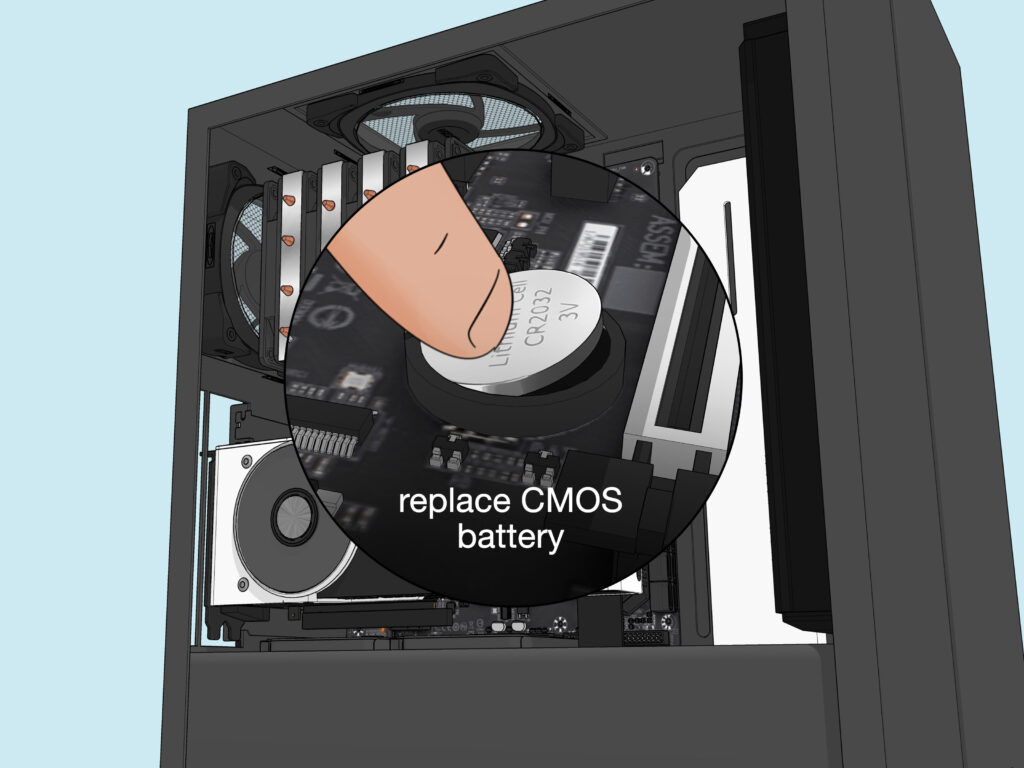
8. Reset BIOS Settings by Removing the CMOS Battery
In rare cases, resetting BIOS settings can resolve conflicts affecting game launches. This involves:
- Powering down your PC and unplugging it.
- Opening your case to access the motherboard.
- Removing the small, round CMOS battery.
- Waiting a few seconds, then reinserting it.
- Reassembling your PC and powering it on.
Note: This step is advanced and may not be suitable for laptops or inexperienced users. It’s best to consult a professional if unsure. For more insights, see Reddit’s guide on resetting BIOS.
—
Additional Tips and Resources
- Ensure your game supports your operating system by checking the store page.
- Consider using performance overlays to monitor system resource usage.
- Visit official support pages for your GPU or motherboard for specific troubleshooting.
By systematically following these steps, you should be able to resolve most issues preventing your Steam games from launching. If problems persist, reaching out to Steam Support or your hardware manufacturer may be necessary.
—
For more in-depth technical guidance, explore this detailed tutorial on how to make a hardware engineer in game dev story or review the typical earnings of game developers. Also, to improve your game’s quality and performance, consider learning how to create perfect games in game dev story or find free assets for your projects.