


Experiencing game crashes when launching Steam titles can be frustrating and disruptive to your gaming experience. Many users report that their games either freeze on the loading screen or close unexpectedly without any error messages. Such issues often stem from corrupted cache files, outdated graphics drivers, or conflicts within the system. Fortunately, there are multiple troubleshooting steps you can take to identify and fix the root causes of these crashes, ensuring smoother gameplay on your Windows PC.
—
Fix 1 – Check Omen Gaming Hub Settings
If you have the Omen Gaming Hub installed on your computer, it’s important to review its configurations. Sometimes, features like game boost mode can interfere with Steam games by conflicting with system resources or services. Open the Omen Gaming Hub and verify whether this mode is enabled. Additionally, ensure that Steam is not set to automatically shut down when other programs launch, which can disrupt game processes. Adjust these settings accordingly to prevent unnecessary interference during gameplay.
—
Fix 2 – Verify the Integrity of Game Files Through Steam
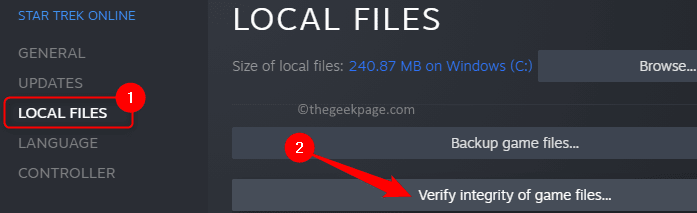
Corrupted or missing game files are a common cause of startup crashes. To address this, you should verify the integrity of your game files via Steam:
1. Launch the Steam application.
2. Navigate to the Library tab where your games are listed.
3. Right-click on the problematic game and select Properties.
4. Choose the Local Files section.
5. Click on Verify integrity of game files.
Steam will then check for any missing or corrupted files and repair them automatically. Once completed, restart Steam by clicking the Steam menu and selecting Exit. To ensure all processes are properly terminated, open Task Manager and end any remaining Steam-related tasks as described in the previous step. After relaunching Steam, try launching the game again to see if the crash persists.
For additional stability, consider checking your network connection and ensuring your game files are fully up to date. Sometimes, issues with game updates can also cause crashes, which can be mitigated by performing a clean reinstallation of the game or Steam itself. You might also find helpful information about managing your game library by exploring resources like how to get game servers in game dev life.
—
Fix 3 – Run Steam with Administrative Privileges
Running Steam as an administrator can resolve permission-related issues that prevent games from launching properly:
1. End all Steam processes via Task Manager (press Ctrl + Shift + Esc).
2. Find the Steam shortcut on your desktop, right-click, and select Open file location.
3. Right-click on the Steam.exe file and choose Properties.
4. Navigate to the Compatibility tab.
5. Check the box labeled Run this program as an administrator.
6. Click Apply, then OK.
7. Launch Steam normally and attempt to start your game again.
This method ensures Steam has the necessary permissions to access system files and resources, potentially resolving conflicts that cause crashes.
—
Fix 4 – Repair the Steam Library and Clear Download Cache
Problems with your Steam library folder or download cache can lead to game launch failures. To fix this:
1. Open Steam and go to Settings.
2. Select the Downloads section.
3. Click on Steam Library Folders.
4. Choose the library folder associated with the problematic game.
5. Click the ellipses (…) button and select Repair folder.
6. Confirm any prompts and wait for the repair to complete.
7. Relaunch Steam and test the game.
If issues persist, clear the download cache:
1. In Steam Settings, navigate to Downloads.
2. Click Clear Download Cache.
3. Confirm when prompted and log back into Steam.
4. Launch your game to check if the crash has been resolved.
For more reliable performance, consider switching your game to a different library folder or ensuring your storage devices are functioning correctly. You can also explore the benefits of cross-platform mobile solutions to enhance game stability across devices.
—
Fix 5 – Reinstall the Steam Client
A clean reinstall can eliminate persistent issues caused by corrupted files or incomplete updates:
1. Press the Windows key and search for Installed Apps.
2. Locate Steam in the list.
3. Click the dot menu next to it and select Uninstall.
4. Confirm the uninstallation and reboot your PC.
5. Visit the official Steam website and download the latest setup file.
6. Run the installer and follow the on-screen instructions.
7. Log in with your credentials and attempt to launch the game again.
A fresh installation often resolves underlying software conflicts and ensures you have the most recent version of Steam.
—
Fix 6 – Delete ClientRegistry.blob in Steam Directory
The ClientRegistry.blob file stores registration data for your Steam client. Deleting it can resolve issues caused by corrupted registry data:
1. Open Task Manager and end all Steam-related processes.
2. Navigate to the default Steam installation directory:
`C:Program Files (x86)Steam`
3. Locate the ClientRegistry.blob file.
4. Delete the file.
5. Restart Steam and allow the client to regenerate the registry file.
6. Log in and test whether your game launches without crashing.
Note: Keep your login credentials handy, as deleting this file resets some client settings.
—
Additional Tips for Preventing Game Crashes
Update Graphics Drivers
Outdated graphics drivers can cause compatibility issues. Use the Device Manager or visit your GPU manufacturer’s website to download and install the latest drivers. Proper driver updates often improve game stability and performance.
Perform a Clean Boot
A clean boot disables unnecessary background services, helping identify software conflicts. Follow instructions from the official Microsoft support to perform a clean startup and troubleshoot the issue.
Check for Windows Updates
Ensure your operating system is current to avoid compatibility problems:
1. Press Windows + R, type ms-settings:windowsupdate, and press Enter.
2. Click Check for updates.
3. Install any available updates and restart your PC.
Keeping Windows updated can resolve bugs and improve overall system stability, reducing the likelihood of Steam game crashes.
—
Hopefully, these troubleshooting methods will help you fix the Steam game crashing at startup problem on your Windows PC. For more insights into improving your gaming experience, explore topics like getting game servers in your development projects or building a game console within your game development story. If you want to enhance your app’s reach or performance, consider the benefits of cross-platform mobile solutions.
—
Note: Always back up your important data before performing major system changes or reinstallation procedures.