


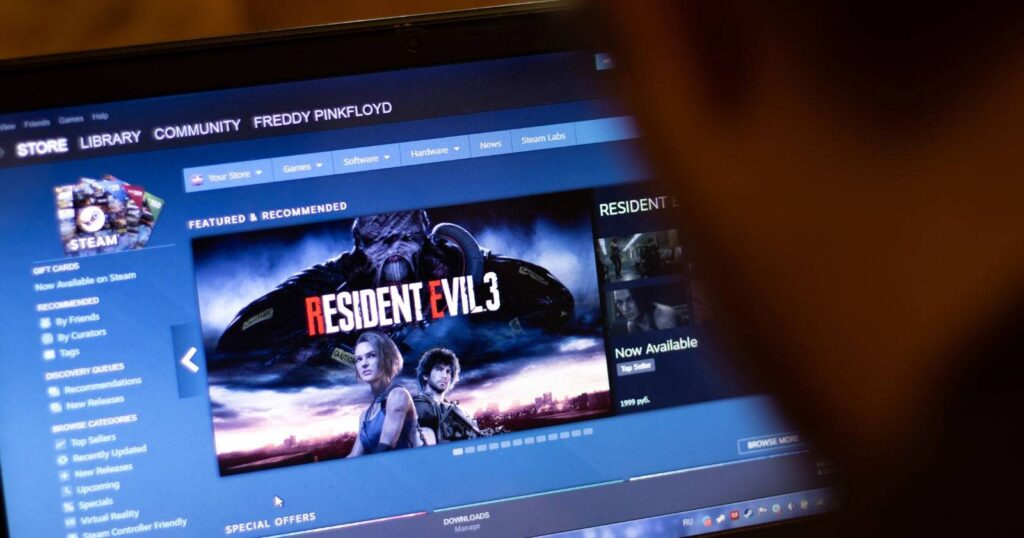
Keeping your gaming activity discreet has become easier with the latest updates to Steam’s privacy options. The platform now allows users to mark individual games as private, giving you more control over what your friends see and what remains hidden in your library. This feature moves beyond the previous all-or-nothing approach, enabling you to selectively hide specific titles without compromising the visibility of your entire collection. Whether you want to conceal in-game activity or prevent certain titles from appearing in your friends’ feeds, understanding how to utilize this new privacy tool is essential for managing your gaming profile effectively.
Steam’s Newly Released Private Game Setting
Steam announced through its official news hub that the private apps feature has officially exited beta, making it accessible to all users. When you log into your account, you’ll notice the option to designate individual games as private. This addition allows for a more tailored approach to privacy, where only selected titles are hidden from friends and other viewers.
Previously, the only way to restrict visibility was to set your entire library as private, which was inconvenient if you only wanted to hide a few games. Now, with the new feature, you can mark specific titles as private, and Steam will hide your in-game status, playtime, and activity for those titles alone, keeping other games visible and accessible to your friends.
How to Mark a Game as Private on Steam
To make a game private, start by opening your Steam client and navigating to your Library. Locate the game you wish to hide and right-click on it to access the context menu. Select Manage and then choose Mark as Private. A confirmation popup will appear—click Mark as Private to confirm your choice.
It’s important to note that the feature might not work immediately if you are currently playing the game. For the change to take effect properly, exit the game before setting it as private. Once you restart the game, it should no longer appear as active or visible in your friends’ activity feeds.
You can also set a game as private at the moment of purchase. When purchasing a game, go to the store page, add it to your cart, and in the checkout popup, select For my account: private from the dropdown menu. This proactive step ensures the game remains hidden from view from the outset, enhancing your privacy right from the start.
Verifying and Managing Private Games
To confirm that a game has been successfully set as private, click on your username at the top of Steam and select Profile. From there, click Games to open your game list. Use the search bar to locate the specific game and look for the crossed-out eye icon on the right side—this indicates the game is private.
You can easily unmark a game as private by right-clicking it in your library, selecting Manage, and then choosing Unmark as Private. Keep in mind that if you’ve set a custom playing status on Discord, private Steam games will still show up while you are playing them, which might reveal activity despite your privacy settings.
Differentiating Private Games from Hidden Games
While the private setting restricts visibility to friends and other viewers, Steam also offers a Hide this game option. This feature is primarily organizational—it hides games from your library view but does not prevent friends from seeing that you own or have played them. Hidden games are accessible through the Hidden Games section, which can be viewed by selecting View > Hidden Games in the Steam menu.
If you’ve been using the wrong feature to conceal your activity, you might find that some titles still appear in your friends’ activity feeds or on your profile. To properly manage this, search for specific games in your library or hidden list to adjust their privacy status accordingly.
For a more comprehensive privacy management, you can review all your hidden titles and change their status to private if necessary. This allows you to keep certain games exclusively for your own viewing, giving you full control over your gaming profile.
Additional Privacy Tips and Best Practices
Remember that privacy settings are most effective when applied from the beginning. When purchasing new games, selecting the private option during checkout can prevent unintended visibility. Also, be aware that privacy controls may not integrate perfectly with third-party platforms like Discord, which might still display activity for private games due to connection settings.
To stay informed about the latest developments and best practices in managing your gaming privacy, explore official resources such as the Steam Support page or guides on game development and community management. For example, if you’re interested in expanding your game development skills or understanding how to unlock new features, you might find helpful insights in guides about unlocking game genres or building dedicated development teams, like those available at Level Up Apps and Scaling your development efforts.
By mastering these privacy controls, you can enjoy your gaming experience with peace of mind, knowing that only the titles you choose to reveal are visible to others.