


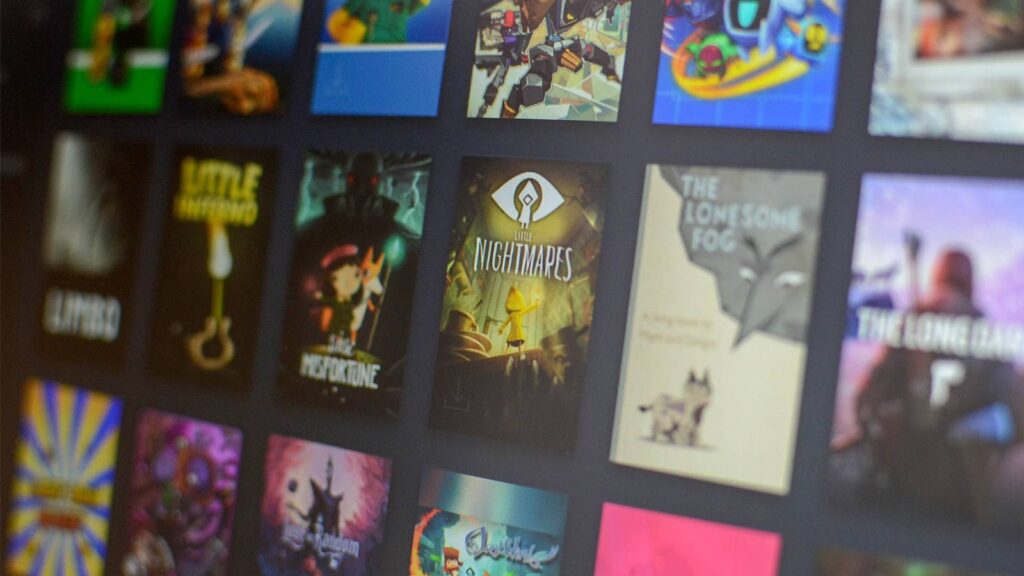
Adding PC Game Pass and Microsoft Store games to your Steam collection can significantly enhance your gaming experience by centralizing your library. Since many of these titles are Universal Windows Platform (UWP) apps, they don’t straightforwardly appear as traditional Steam games. However, with the right tools and steps, you can successfully incorporate these titles into your Steam environment. This guide walks you through the process of using third-party applications to seamlessly add and manage your PC Game Pass and Microsoft Store games within Steam.
Step 1: Download and Install UWPHook
The initial step involves acquiring the UWPHook software, a lightweight utility designed to help users add UWP-based games—such as those from PC Game Pass or the Microsoft Store—to Steam as non-Steam apps. To do this, visit the application’s GitHub repository. Scroll to the “Assets” section and download the executable file named UWPHook.exe. Once downloaded, run the installer and follow the default prompts to complete the installation process.
If all goes smoothly, a shortcut for UWPHook will appear on your desktop, allowing quick access. No need to alter default options during installation; the tool is straightforward and designed for ease of use.
Step 2: Launch UWPHook and Add Your Games to Steam
Before proceeding, ensure that Steam is entirely closed, as the process requires Steam to be offline to successfully add games. Right-click the Steam icon in your system tray or taskbar and select “Exit” to shut it down completely.
Open UWPHook and allow it to scan your system for UWP applications, including your PC Game Pass and Microsoft Store titles. The application will display a list of detected games. Select the ones you wish to add to your Steam library. You have the option to manually add game artwork or let UWPHook fetch it automatically. If you prefer to add artwork manually, click the “Export Selected Games to Steam” button, and refer to guides on how to add non-Steam games to your library with custom images. Otherwise, continue with the automatic artwork process.
In some cases, UWPHook may show an error message like “Error: UWPHook exporting your games. Error: program failed while trying to write your Steam shortcuts.” This usually occurs if Steam was running during the process. Simply closing Steam completely before running UWPHook ensures the addition proceeds smoothly.
Step 3: (Optional) Customize Game Artwork for Better Visuals
For a more polished look, you might want to assign custom artwork to your added games. To do this, open UWPHook and access its settings by clicking the gear icon. Within the settings, locate the “Steam Grid” tab, then click the key icon to generate an API key from SteamGridDB—an online repository of custom game images.
To obtain the API key, the app will redirect you to the SteamGridDB website. Log in using your Steam account credentials and create an account if you haven’t already. Once logged in, navigate to your account settings, select “Preferences,” and click on “API.” From there, generate a new API key and copy it.
Paste this key into the designated box within UWPHook and save the settings. Now, when you export your selected games, UWPHook will not only add them to your Steam library but also automatically apply high-quality custom artwork, enhancing your library’s visual appeal.
Additional Tips and Resources
If you wish to further optimize your gaming setup, consider exploring how to share your Steam library with friends or how to back up your game saves via Steam Cloud. For developers or those interested in expanding their gaming content, learning about how to unlock genres in popular simulation games can be beneficial, which you can find more about in this guide on expansion features in game development. Moreover, if you’re contemplating building a dedicated team for game development, resources on scaling your project with specialized teams can provide valuable insights.
By following these steps, you can effectively integrate PC Game Pass and Microsoft Store titles into your Steam library, making your gaming experience more cohesive and enjoyable.